28 May 2013

Workaround for selecting the last vertex of a Windows Phone MapPolyline

Fellow MVP - and fellow map maniac - Morten Nielsen brought me into contact with a Windows Phone developer called Jonathan Aghachi. He was struggling to select MapPolylines drawn on a Map using Map.GetMapElementsAt. For those not familiar with he concept of selecting stuff on a Wiindows Phone 8 map – you cannot select the shapes on the map directly like on Windows RT – they do not expose any events. In stead, you can trap the Tap event of the Map object, and retrieve all objects on that location like this:

private void Map_Tap(object sender, GestureEventArgs e)
{
  var selected = Map.GetMapElementsAt(e.GetPosition(Map));
}

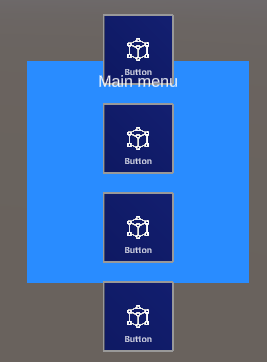
selectbug

The problem

There is apparently a bug in Map.GetMapElementsAt when trying to select the line by using a point on the last vertex, i.e. that piece of the MapPolyline that runs between the 2nd to last point and the last point. If a MapPolyline has only one vertex (that is, only a start and an end point, with no points in between) you will not be able at all to select it using Map.GetMapElementsAt  This was exactly what Jonathan was experiencing. It can be clearly demonstrated by this very simple application, that looks like displayed on the right. It draws thee MapPolylines on the map, each with a different color. The Tap function of the map is a more extended version of the sample above and looks like displayed below:


private void Map_Tap(object sender, GestureEventArgs e)
{
  var selected = 
Map.GetMapElementsAt(e.GetPosition(Map)).FirstOrDefault() as MapPolyline; if (selected != null) { TitleText.Foreground = new SolidColorBrush( selected.StrokeColor); MessageBox.Show("MapPolyline selected"); } }

This should show the TitleText text (showing “MAPPOLYGON BUG") in the color of the selected MapPolyline, and show a message box as well. If you download the sample solution that goes with this post, you will notice:

  • You can tap on the red line as much as you want – but you will never get the message box
  • You can select the yellow line, but only if you tap on the horizontal part. The part that runs diagonally to the north-east will never get you a message box

The workaround

As you may have noticed, the green line, although it has only two points, can be selected by tapping on it. The reason for that is very simple – it does not have two points, but three. I have added the last point twice to the to the line, effectively creating a vertex of zero length. Then the first vertex isn’t the last anymore, and presto. See this little code excerpt:

var line1 = new MapPolyline();
line1.Path.Add(new GeoCoordinate(52.154346, 5.36974));
line1.Path.Add(new GeoCoordinate(52.154346, 5.411282));
line1.StrokeColor = Colors.Red;
line1.StrokeThickness = 10;
Map.MapElements.Add(line1);

var line3 = new MapPolyline();
line3.Path.Add(new GeoCoordinate(52.165509, 5.36974));
line3.Path.Add(new GeoCoordinate(52.165509, 5.411282));
line3.StrokeColor = Colors.Green;
line3.StrokeThickness = 10;
Map.MapElements.Add(line3);

Some concluding remarks

My contacts at the Windows Phone team have confirmed this as a bug. I think this is very minor indeed, and using this simple work around makes circumventing it pretty easy. I know Jonathan is happily moving forward now with my workaround.

For the record: I actually wrote both code and blog post in Plön, in the north of Germany, during my holiday there. It was quite rainy that day, so what the heck ;-)

13 May 2013

Windows Phone 8 navigation part 4–updating the tests, fixing the final issues

Last time: so close, yet so far:

This series appears to have become a trilogy in four parts – at the end of the last episode everything worked, save for tombstoning, although we explicitly wrote test code for that. The the app tombstoned, partially - two things were apparently missing:

  • The route
  • The locations to and from the route should run.

Making the tests fail

An important step when you have a bug in an app that passes all tests, is to make a test that fails because of the bug. In that case, you have reproduced the problem, and can start on fixing the bug. Logically, the bug is fixed when the test no longer fails – and should anyone start to mess around with your code an re-introduce the bug, the test will fail again, indicating something has gone wrong before you even ship. Your tests have become a smoke detector ;-)

Anyway, we observe there is no selected location, nor routes or waypoints after tombstoning. When we look at the comprehensive test for RoutingViewModel written in the 2nd post of this series, we see the following Assert statement with regard to the retrieved viewmodel:

Assert.IsTrue(vm.RouteCoordinates.Any());
Assert.IsTrue(vm.Maneuvers.Any());
Assert.IsTrue(retrievedVm.RouteCoordinates.Count == vm.RouteCoordinates.Count);
Assert.IsTrue(retrievedVm.FromViewModel.SearchText == "Springerstraat Amersfoort Netherlands");
Assert.IsTrue(retrievedVm.Maneuvers.Count == vm.Maneuvers.Count);

Shockingly, we learn two things:

  • We indeed don’t test the presence of either SelectedLocation or either FromViewModel and ToViewModel.
  • We do test the presence of both RouteCoordinates and Maneuvers. So our viewmodel works in that respect – so the error must have to do something with data binding.

First, we add test code for SelectedLocation

Assert.IsNotNull(retrievedVm.FromViewModel.SelectedLocation);
Assert.IsNotNull(retrievedVm.ToViewModel.SelectedLocation);

And sure enough:

image

Annoyingly, this does only say which test failed, but not what exactly failed in this test. You can of course follow the purist route and write a separate test method for every assert, or just be lazy like me and use the overload every Assert method has:

Assert.IsNotNull(retrievedVm.FromViewModel.SelectedLocation, 
  "No FromViewModel.SelectedLocation tombstoned");
Assert.IsNotNull(retrievedVm.ToViewModel.SelectedLocation, 
 "No ToViewModel.SelectedLocation tombstoned");

image

And there we are. A clear error message. There is no SelectedLocation after tombstoning

Fixing the SelectedLocation bug aka serialization under the hood

Let me introduce you to the wonderful world of serialization. Much as we move into the world of asynchronous and parallel programming, serialization is essentially a sequential process. First property A is written, then property B. When something is deserialized, things are also read from storage in a particular order, i.e. the order they are written.

Let’s get back to the RoutingViewModel. I’ve abbreviated the property implementation a bit, apart from the Model. There we see the following code:

public ManeuverViewModel SelectedManeuver

public GeocodeViewModel ToViewModel

public GeocodeViewModel FromViewModel

public ObservableCollection<RouteGeometryViewModel> RouteCoordinates { get; set; }

public ObservableCollection<ManeuverViewModel> Maneuvers { get; set; }

private NavigationModel model;
public NavigationModel Model
{
  get { return model; }
  set
  {
    model = value;
    if (model != null)
    {
      ToViewModel = new GeocodeViewModel(model.To) { Name = "To" };
      FromViewModel = new GeocodeViewModel(model.From) { Name = "From" };
    }
  }
}

Now let’s assume, for a moment, serialization simply reflects all public properties with both getter and setter, and writes them one by one to storage – and reads them in the same order. In no particular order – if this were a database that most probably means the order the in which records were put in. Could it be reflection works the same way? But then, deserializing would mean that first the SelectedManeuver would be deserialized, then ToViewModel and FromViewModeland, then the RouteCoordinates, then the Maneuvers, and finally the model. But smart Mr Me has implemented this clever method of initializing FromViewModel and ToViewModel upon calling of the setter. So whatever was deserialized into FromViewModel and ToViewModel  gets overwritten after Model is deserialized!

So let’s make the Model property the very first property of the viewmodel, right after the constructors, run the test and see what happens…

image

You can imagine with this kind of arcane stuff going on behind the curtains, (unit) test code can be a really great tool to track and fix this kind of obscure errors – and make sure they never, ever occur suddenly again, just because someone changed the order in the way things are implemented!

Fixing the MapShapeDrawBehavior bug

This is a bit of odd one – apparently the developer that made the MapShapeDrawBehavior – a knucklehead who names himself “LocalJoost” ;-) -  has made an error implementing data binding – while he implemented listening to all the collection events correctly, he never apparently anticipated the initial collection should could have some values before data binding ensued. The advantage of open source is that we actually can see this. So, we either have to copy MapShapeDrawBehavior ‘s code and make a manual fix to make sure some event occurs that makes it go draw the stuff – or implement a band-aid that does not interfere with the existing code.

I pulled out the band, aid, and made the following class:

using System.Collections.Generic;
using System.Collections.ObjectModel;
using System.Collections.Specialized;

namespace Wp7nl.Utilities
{
  public class ResettableObservableCollection<T> : ObservableCollection<T>
  {
    public ResettableObservableCollection()
    {
    }

    public ResettableObservableCollection(List<T> list)
      : base(list)
    {
    }

    public ResettableObservableCollection(IEnumerable<T> list)
      : base(list)
    {
    }

    public void ForceReset()
    {
      OnCollectionChanged(
       new NotifyCollectionChangedEventArgs(NotifyCollectionChangedAction.Reset));
    }
  }
}

I changed both RouteCoordinates and Maneuvers in RoutingViewmodel into ResettableObservableCollection, added the following command to RoutingViewmodel:

[DoNotSerialize]
public ICommand MapLoadedCommand
{
  get
  {
    return new RelayCommand( ()=>
        {
          RouteCoordinates.ForceReset();
          Maneuvers.ForceReset();
        });
  }
}

and finally, the following piece of XAML to the map:

<i:Interaction.Triggers>
  <i:EventTrigger  EventName="Loaded">
    <Command:EventToCommand Command="{Binding MapLoadedCommand}"/>
  </i:EventTrigger>
</i:Interaction.Triggers

imageThis will fire the command directly after the map has loaded. Data binding has already occurred then. And sure enough, even after restarting the app, everything is reloaded from storage. The behavior is tricked into believing it should draw it’s stuff. Now I only need to publish my app, and inform this LocalJoost character that his library contains bugs and if he can fix them ASAP, thank you very much.

Concluding remarks

This series did not only show you the basics of Windows Phone 8 navigation, but also how to develop geo-applications on Windows Phone 8 using unit/integration test to explore and test functionality, as well as using test as a way to hunt down and fix bugs. It also showed that if your test are incomplete, you might get bitten. And finally it showed you that, in the end, you still need to test manually to catch bugs that are caused by dunderheads making errors in their published code ;-)

The final solution can be found here,

10 May 2013

Windows Phone 8 navigation part 3–assembling the MVVMLight app

Last time on, on Dotnetbyexample…

In the first post I described how to write the business logic to find a location by searching for an address by text, and in the second post I described how to do some actual routing – still, only business logic and viewmodels. And we kept in mind all the results should be tombstonable, and how to make sure this all worked by using simple unit/integration tests.

Today, it’s time for the actual app. Bear in mind this post will actually refer to a lot of earlier other posts – from even outside this series. In this post I am also going to show you that working with you designer sometimes means you need to make little tweaks to your viewmodels to make it work the way you want, or make life easier on the designer. Remember, you are the technician, the person who needs to make it finally work.

GUI and interaction design

So, after conferring with the designer we have agreed the app should work like this:

Windows Phone 8 navigate by MVVMLight

The route is displayed as a line, every maneuver as a star, and when you tap that star it should show a panel showing the maneuver description. For interested parties – this is a car route I could take to my home to my work at Vicrea ;-)

Well – the moving panels are easy to solve with some View States and DataTriggers – I’ve been down that road before. Showing a line and points on a map from the view model – been there done that, wrote behaviors for that and those are snugly in the wp7nl library which is, not quite coincidental, part of this solution already.

So, we need to do the following: 

  • Define the app user interface, that is:
    • Two panels enabling the user to input text and select a route, e.g. a user interface for both the GeocodeViewModels in RoutingViewmodel. We’ll make a user control from that
    • A panel with From/To info making showing the address from an to, and making it possible to let the From and To panel into view. This will be a user control as well
    • A button firing off the RoutingViewmodel’s DoRoutingCommand
    • A panel that’s shown as the user taps a maneuver. This, too, will be a user control.
    • A Map
  • A MainViewModel that’s acting as a kind of locator and a serialization root point, like I always do.
  • Something to handle the view state.

Adding ViewState management

Just like I did before in this post, I added a DisplayState enumeration in de NavigationDemo.Logic project, like this:

namespace NavigationDemo.Logic.States
{
  public enum DisplayState
  {
    Normal = 0,
    SearchFrom = 1,
    SearchTo = 2,
    ShowManeuver = 3
  }
}
one state for every panel, and a “Normal” state for every other panel. And then I decided to take the easy way out and add the state control to the RoutingViewmodel, basically to make data binding easier. Of course I could have made a separate view model for this, but what the heck, it’s only a few lines of code anyway:
[DoNotSerialize]
public ICommand DisplayPopupCommand
{
  get
  {
    return new RelayCommand<string>(
        p =>
        {
          DisplayState = (DisplayState)Enum.Parse(typeof(DisplayState), p);
        });
  }
}

private DisplayState displayState;
public DisplayState DisplayState
{
  get { return displayState; }
  set
  {
    if (displayState != value)
    {
      displayState = value;
      RaisePropertyChanged(() => DisplayState);
    }
  }
}    

It makes life easier on the designer, he does not have mess around with data context so much. The property is the actual storage for the DisplayState, and the command sets the display state to it's parameter. All described before. The final piece is a little adaption in the SelectedManeuver property, there we need to add in the setter:

DisplayState = SelectedManeuver != null ? DisplayState.ShowManeuver : DisplayState.Normal;
directly behind the RaisePropertyChanged. This will have the panel showed automatically when a non-null value is detected after the setter has been accessed. 

imageGeocodeViewModel ui

I tend to put user controls into a separate folder UserControls (never been one for original naming conventions anyway). The design of the GeocodeControl looks like this:

And I’ve put it in XAML like this:

<UserControl.Resources>
  <DataTemplate x:Key="AddressTemplate">
    <Grid>
      <TextBlock HorizontalAlignment="Left" TextWrapping="Wrap" Text="{Binding Address}"
VerticalAlignment="Top"/> </Grid> </DataTemplate> </UserControl.Resources> <Grid x:Name="LayoutRoot" Background="{StaticResource PhoneChromeBrush}"> <Grid Margin="12,0" > <!-- Definitions omitted --> <Button Grid.Column="2" Style="{StaticResource RoundButton}" Command="{Binding SearchLocationCommand, Mode=OneWay}" VerticalAlignment="Bottom" HorizontalAlignment="Left" Height="72" Width="72"
Margin="0,0,-5,0" > <Rectangle Fill="{StaticResource PhoneForegroundBrush}" Width="44" Height="44" > <Rectangle.OpacityMask> <ImageBrush ImageSource="/images/feature.search.png" Stretch="Fill"/> </Rectangle.OpacityMask> </Rectangle> </Button> <TextBlock TextWrapping="Wrap" Text="Search" VerticalAlignment="Center"
Height="27" Margin="0,23,0,22" /> <TextBlock TextWrapping="Wrap" Text="Found" Grid.Row="1"
VerticalAlignment="Center" Height="27"/> <TextBox Grid.Column="1" TextWrapping="NoWrap"
Text="{Binding SearchText, Mode=TwoWay}"> <i:Interaction.Behaviors> <Behaviors:TextBoxChangeModelUpdateBehavior/> </i:Interaction.Behaviors> </TextBox> <ListBox Grid.Column="1" Grid.Row="1" Margin="12" ItemsSource="{Binding MapLocations}" SelectedItem="{Binding SelectedLocation,Mode=TwoWay}" ItemTemplate="{StaticResource AddressTemplate}"/> <Button Content="Done" Grid.Row="2" Grid.Column="1" VerticalAlignment="Center" Margin="0,23,0,22" Height="71" Command="{Binding DoneCommand}"/> </Grid> </Grid>

There will be two instances of this user control – one to determine the “From” address, and one for the “”To” address.

There are some things to note here, all underlined in red:

  • I am using a RoundButton style to get a round button, to show an standard image feature_search.png. I pulled this ages ago from this post by Alex Yakhnin if I am not mistaken.
  • There is no data context set, therefore, the data context – a GeocodeViewModel – should be set in the parent element. No problem. But the DoneCommand, which should dismiss the panel, is therefore also in the GeocodeViewModel, and there is no code for that. Worse, the actual state control logic is in a totally different view model – in this case the RoutingViewmodel. Two view models, having no real knowledge of each other, yet needing to get some data across – that spells m-e-s-s-e-n-g-e-r.

Adding some Messenger magic

We define a simple message “DoneMessage” that, when received by the RoutingViewmodel (that also keeps the view state) will dismiss all popups. It’s pretty easy to implement:

namespace NavigationDemo.Logic.Messages
{
  public class DoneMessage{ }
}

And in the RoutingViewmodel, in the constructor, just one line:

Messenger.Default.Register<DoneMessage>(this, 
msg => DisplayState = DisplayState.Normal);

Well, okay, one line split in two ;). But anyway, this allows to add a DoneCommand in GeocodeViewModel simply like this:

[DoNotSerialize]
public ICommand DoneCommand
{
  get
  {
    return new RelayCommand(() => Messenger.Default.Send(new DoneMessage()));
  }
}

And boom – executing the DoneCommand in RoutingViewmodel will reset the DisplayState to Normal, dismissing all popups. That is, as soon as we have implemented the DataTriggers and the ViewStates ;-)

imageLocationPanel

This is the thing used to scroll the GeocodeControls into view, looking like this

<Grid Height="144" VerticalAlignment="Top" Background="#7F000000">
  <Grid Margin="12,0">
    <Grid >
      <!-- Definitions omitted -->
      <TextBlock TextWrapping="Wrap" Text="From" VerticalAlignment="Top"
Margin="0,12,0,0" Height="27" /> <TextBlock TextWrapping="Wrap" Text="To" Grid.Row="1" VerticalAlignment="Top"
Margin="0,12,0,0" Height="27"/> <TextBlock TextWrapping="Wrap" Text="{Binding FromViewModel.SelectedLocation.Address, Mode=TwoWay}" Grid.Column="1" VerticalAlignment="Top" Margin="0,12,0,0" /> <TextBlock TextWrapping="Wrap" Text="{Binding ToViewModel.SelectedLocation.Address, Mode=TwoWay}" Grid.Row="1" Grid.Column="1" VerticalAlignment="Top" Margin="0,12,0,0" /> <Button Grid.Column="2" Style="{StaticResource RoundButton}" Command="{Binding DisplayPopupCommand, Mode=OneWay}" CommandParameter="SearchFrom" VerticalAlignment="Center" HorizontalAlignment="Left" Height="72"
Width="72" Margin="0,0,-10,0" > <!-- Rounded button stuff omitted --> </Button> <Button Grid.Column="2" Grid.Row="1" Style="{StaticResource RoundButton}" Command="{Binding DisplayPopupCommand, Mode=OneWay}" CommandParameter="SearchTo" VerticalAlignment="Center" HorizontalAlignment="Left" Height="72" Width="72"
Margin="0,0,-10,0"> <!-- Rounded button stuff omitted --> </Button> </Grid> </Grid> </Grid>

for the sake of brevity I cut some things out of the XAML. Most interesting to note here, once again red and underlined:

  • The 3nd and the 4th TextBlock show the Address of the Selected location of the From and the To GeocodeViewModel
  • The buttons both call the same command, but with a parameter – this will determine which popup appears. Or actually, the viewstate which will be selected, but that amounts to the same

imageManeuverPopup

This is the popup that appears from the side, as the user has tapped on a start.

It’s a pretty simple piece, both how it looks and in XAML:

<Grid x:Name="LayoutRoot" Background="{StaticResource PhoneChromeBrush}" Opacity="0.9">
  <Grid Margin="12,0" >
    <Grid.RowDefinitions>
      <RowDefinition Height="*"/>
      <RowDefinition Height="76"/>
    </Grid.RowDefinitions>
    <Grid.ColumnDefinitions>
    </Grid.ColumnDefinitions>
    <TextBlock Grid.Row="0" TextWrapping="Wrap" Text="{Binding Description}" 
      HorizontalAlignment="Center"/>
    <Button Content="Close" Grid.Row="1" VerticalAlignment="Center"     
      Height="71" Width="313" Command="{Binding DoneCommand}" />
  </Grid>
</Grid>

With only one thing really to note – this popup needs to be able to be dismissed to – so we can implement the exact same DoneCommand as in GeocodeViewModel and put it into ManeuverViewModel. Copy – paste – done. Of course you can also make a base class for both viewmodels and making both GeocodeViewModel ManeuverViewModel child classes of it. This won’t save you much code in this case though.

MainViewModel

This is kinda not very interesting – see for an explanation on usage this post, that’s quite old already. MainViewModel is the root for all view model, used as a starting point for data binding and tomb stoning But this is what we are going to use a binding root. How the initialization and tombstoning from App.xaml.cs is working is described in the same post, some I am not going to repeat that. This particular MainViewModel looks like this:

using GalaSoft.MvvmLight;
using NavigationDemo.Logic.Models;

namespace NavigationDemo.Logic.ViewModels
{
  public class MainViewModel : ViewModelBase
  {
    public NavigationModel Model { get; set; }

    public MainViewModel()
    {
    }

    public MainViewModel(NavigationModel model)
    {
      Model = model;
    }

    private RoutingViewmodel routingViewModel;
    public RoutingViewmodel RoutingViewModel
    {
      get
      {
        if (routingViewModel == null)
        {
          routingViewModel = new RoutingViewmodel(Model);
        }
        return routingViewModel;
      }
      set
      {
        if (routingViewModel != value)
        {
          routingViewModel = value;
          RaisePropertyChanged(() => RoutingViewModel);
        }
      }
    }

    private static MainViewModel instance;
    public static MainViewModel Instance
    {
      get
      {
        return instance;
      }
      set { instance = value; }
    }

    public static MainViewModel CreateNew()
    {
      if (instance == null)
      {
        instance = new MainViewModel(new NavigationModel());
      }
      return instance;
    }
  }
}

We define it as a data source in App.Xaml

<ViewModels:MainViewModel x:Key="MainViewModelDataSource"/>
Which requires the following definition in your App.xaml header:
xmlns:ViewModels="clr-namespace:NavigationDemo.Logic.ViewModels;assembly=NavigationDemo.Logic"

MainPage.xaml – the main gui

Initially, this has four major parts:

  • The header
  • The Map
  • The three routing panels (2x GeocodeControl + 1x  LocationPanel)
  • The ManeuverPopup
  • The search button.

Now the header is simple enough:

<Grid x:Name="LayoutRoot" Background="Transparent" 
  DataContext="{Binding Instance, Source={StaticResource MainViewModelDataSource}}">
  <Grid.RowDefinitions>
    <RowDefinition Height="Auto"/>
    <RowDefinition Height="*"/>
  </Grid.RowDefinitions>

  <StackPanel x:Name="TitlePanel" Grid.Row="0" Margin="12,17,0,28">
    <TextBlock Text="NAVIGATE BY MVVMLIGHT" 
      Style="{StaticResource PhoneTextNormalStyle}" Margin="12,0"/>
  </StackPanel>

The only more or less interesting part is the data binding. Then comes the map. This uses my MapShapeDrawBehavior to bind the shapes to map:

<Grid x:Name="ContentPanel" Grid.Row="1" Margin="12,0,12,0" 
   DataContext="{Binding RoutingViewModel}">
  <maps:Map Wp8nl_MapBinding:MapBindingHelpers.MapArea="{Binding ViewArea}"
              Center="{Binding MapCenter, Mode=TwoWay}"
              ZoomLevel="{Binding ZoomLevel, Mode=TwoWay}">
    <i:Interaction.Behaviors>
      <MapBinding:MapShapeDrawBehavior LayerName="Route" ItemsSource="{Binding RouteCoordinates}" 
        PathPropertyName="Geometry">
        <MapBinding:MapShapeDrawBehavior.ShapeDrawer>
          <MapBinding:MapPolylineDrawer Color="Green" Width="10"/>
        </MapBinding:MapShapeDrawBehavior.ShapeDrawer>
      </MapBinding:MapShapeDrawBehavior>
      <MapBinding:MapShapeDrawBehavior LayerName="Maneuvers" ItemsSource="{Binding Maneuvers}" 
        PathPropertyName="Location">
        <MapBinding:MapShapeDrawBehavior.ShapeDrawer>
          <MapBinding:MapStarDrawer Color="Red" Arms="8" InnerRadius="25" OuterRadius="50"/>
        </MapBinding:MapShapeDrawBehavior.ShapeDrawer>
        <MapBinding:MapShapeDrawBehavior.EventToCommandMappers>
          <MapBinding:EventToCommandMapper EventName="Tap" CommandName="SelectCommand"/>
        </MapBinding:MapShapeDrawBehavior.EventToCommandMappers>
      </MapBinding:MapShapeDrawBehavior>
  </maps:Map>

Things of notice here:

  • The grid where the map is in (and incidentally, almost the whole user interface, has the RoutingViewModel as it’s data context.
  • Map view area is not bindable so that’s bound using a simple attached dependency property, I will include this in the coming version for the wp7nl library on codeplex but skip it for now. Center and ZoomLevel are simple direct property bindings
  • The actual route is a green line, bound to RouteCoordinates. TheMapShapeDrawBehavior actually expects a list of objects, so we gave it a list, remember from the previous post?
  • The Maneuvers are display as red stars, by binding a MapShapeDrawBehavior to the Maneuvers list. If one is tapped, the SelectCommand on the ManeuverViewModel is fired, causing the the selected maneuver to be sent over the Messenger

Next, are the three panels:

<UserControls:LocationsPanel VerticalAlignment="Top"/>
<UserControls:GeocodeControl x:Name="GeocodeFrom" VerticalAlignment="Top" 
        RenderTransformOrigin="0.5,0.5" 
        DataContext="{Binding FromViewModel}">
  <UserControls:GeocodeControl.RenderTransform>
    <CompositeTransform TranslateY="-326"/>
  </UserControls:GeocodeControl.RenderTransform>
</UserControls:GeocodeControl>
<UserControls:GeocodeControl x:Name="GeocodeTo" VerticalAlignment="Top" 
       RenderTransformOrigin="0.5,0.5"
       DataContext="{Binding ToViewModel}">
  <UserControls:GeocodeControl.RenderTransform>
    <CompositeTransform TranslateY="-326"/>
  </UserControls:GeocodeControl.RenderTransform>
</UserControls:GeocodeControl>
<UserControls:ManeuverPopup x:Name="maneuverPopup" VerticalAlignment="Bottom" 
     Height="151" RenderTransformOrigin="0.5,0.5" Margin="0,0,0,72"
     DataContext="{Binding SelectedManeuver}">
  <UserControls:ManeuverPopup.RenderTransform>
    <CompositeTransform TranslateX="470"/>
  </UserControls:ManeuverPopup.RenderTransform>
</UserControls:ManeuverPopup>

Actually rather straightforward. From panel binds to FromViewModel, To panel to ToViewModel, and the maneuverPopup to SelectedManeuver.

The last part ain’t rocket sciece: just a simple BindableApplicationBar with one button executing the actual routing command:

<phone7Fx:BindableApplicationBar BarOpacity="0.9" >
  <phone7Fx:BindableApplicationBarIconButton Command="{Binding RoutingViewModel.DoRoutingCommand}"
                                             IconUri="/images/feature.search.png"
                                             Text="Route" />
</phone7Fx:BindableApplicationBar>

The only thing to notice is that since it’s sitting outside the content panel, in the main grid, it’s data content is het MainViewModel to I have to prepend the RoutingViewModel again.

DataTrigger Animation Magic

I am going to keep this simple: if you want to know how to create this, I suggest you read my article on ViewModel driven multi-state animations using DataTriggers and Blend on Windows Phone. I have created the following visual states:

<VisualStateManager.CustomVisualStateManager>
  <ei:ExtendedVisualStateManager/>
</VisualStateManager.CustomVisualStateManager>
<VisualStateManager.VisualStateGroups>
  <VisualState x:Name="Normal"/>
  <VisualStateGroup x:Name="Search">
    <VisualStateGroup.Transitions>
      <VisualTransition GeneratedDuration="0:0:0.5"/>
    </VisualStateGroup.Transitions>
    <VisualState x:Name="SearchFrom">
      <Storyboard>
        <DoubleAnimation To="0" 
          Storyboard.TargetProperty="(UIElement.RenderTransform).(CompositeTransform.TranslateY)" 
          Storyboard.TargetName="GeocodeFrom"/>
      </Storyboard>
    </VisualState>
    <VisualState x:Name="SearchTo">
      <Storyboard>
        <DoubleAnimation To="0" 
          Storyboard.TargetProperty="(UIElement.RenderTransform).(CompositeTransform.TranslateY)" 
          Storyboard.TargetName="GeocodeTo"/>
      </Storyboard>
    </VisualState>
     <VisualState x:Name="ShowManeuver">
      <Storyboard>
        <DoubleAnimation Duration="0" To="0" 
          Storyboard.TargetProperty="(UIElement.RenderTransform).(CompositeTransform.TranslateX)" 
          Storyboard.TargetName="maneuverPopup" />
      </Storyboard>
    </VisualState>
  </VisualStateGroup>
</VisualStateManager.VisualStateGroups>
You can see “Search” moves “GeocodeFrom”  into view, “SearchTo” moves GeocodeTo into view, and “ShowManeuver”  shows the maneuverPopup. And Normal is the base state, basically moving everything back to it’s base place, i.e. out of the screen. I also created these data triggers.
 <i:Interaction.Triggers>
  <ei:DataTrigger Binding="{Binding DisplayState}" Value="0">
    <ei:GoToStateAction StateName="Normal" />
  </ei:DataTrigger>
  <ei:DataTrigger Binding="{Binding DisplayState}" Value="1">
    <ei:GoToStateAction StateName="SearchFrom" />
  </ei:DataTrigger>
  <ei:DataTrigger Binding="{Binding DisplayState}" Value="2">
    <ei:GoToStateAction StateName="SearchTo" />
  </ei:DataTrigger>
  <ei:DataTrigger Binding="{Binding DisplayState}" Value="3">
    <ei:GoToStateAction StateName="ShowManeuver" />
  </ei:DataTrigger>
</i:Interaction.Triggers>

These are all sitting inside the contentpanel, right above the map.

And finally… well… not really

If you run the app now – or download the sample solution, lo and behold – the app works as designed. That is … until you press the start button and start the app anew. You will notice the fact that although the right location is displayed, the route is not, the LocationPanel is empty again, but the search text is not. How the hell is this possible? We have written test till the cows came home!

Well, I can tell you we have run in some very subtle serialization bugs. Fixing those bugs is what we are going to do in the next and last episode. Like I said in the previous episode, no amount of unit and/or integration testing is going to free you from manually testing your app – is just a tool to increase, maintain and guarantee the quality of some parts of your app.

Anyway – the solution so far can be downloaded here.

01 May 2013

Windows Phone 8 navigation part 2–routing, route details,tombstoning–and testing

What happened last time on this show

In the previous post I described to how to write the business logic to find a location by searching for an address by text, how to be able to tombstone the results, and how to make sure this all worked by using simple tests. Fine, but the purpose was routing, that is, actually making the app finding instructions to get from A to B. As a GIS buff, being used to complex algorithms and stuff, this is almost embarrassingly easy in Windows Phone 8. You basically need an object of type RouteQuery, plonk in any number of waypoints (at least two, of course, being the start and the end) and a method of transport (drive or walk). And that’s basically it.

But we still have to honor the other two requirements – in needs to be testable and serializable so we can support tombstoning

Find the route, Luke phone

So in the solution I created last time I add another business class that does the actual finding of the route:

using System.Collections.Generic;
using System.Device.Location;
using System.Threading.Tasks;
using Microsoft.Phone.Maps.Services;
using Wp7nl.Utilities;

namespace NavigationDemo.Logic.Models
{
  public class NavigationModel
  {
    public NavigationModel()
    {
      From = new GeocodeModel();
      To = new GeocodeModel();
    }

    public async Task DoRouting()
    {
      await DoRouting(From.SelectedLocation.GeoCoordinate, 
                      To.SelectedLocation.GeoCoordinate);
    }

    public async Task DoRouting(GeoCoordinate from, GeoCoordinate to)
    {
      var wayPoints = new List<GeoCoordinate>(new[] { from, to });
      var routeQuery = new RouteQuery 
        { TravelMode = TravelMode.Driving, Waypoints = wayPoints };
      FoundRoute = await routeQuery.GetRouteAsync();
    }

    public Route FoundRoute { get; set; }   

    public GeocodeModel From { get; set; }

    public GeocodeModel To { get; set; }
  }
}

This comes in the NavigationDemo.Logic project, in the Models folder, next to GeocodeModel. Here you can see what I just mentioned – the actual navigation logic is very simple. This whole model comes down to three lines (red, bold and underlined). But, does this work?

Testing the routing

In the unit test app I added a NavigationModelTest class. To ease testing, I created public overload method where I can directly supply the waypoints. We already know the GeocodeModel works. We have tested that before.

using System;
using System.Device.Location;
using System.Linq;
using System.Threading;
using System.Windows;
using Microsoft.VisualStudio.TestPlatform.UnitTestFramework;
using NavigationDemo.Logic.Models;

using Wp7nl.Utilities;
namespace NavigationDemo.Logic.Test { [TestClass] public class NavigationModelTest { [TestMethod] public void TestPointRouting() { var m = new NavigationModel(); var waitHandle = new AutoResetEvent(false); Deployment.Current.Dispatcher.BeginInvoke(async () => { await m.DoRouting( new GeoCoordinate(52.182679977268, 5.39752000942826), new GeoCoordinate(52.1061999723315, 5.03457002341747)); waitHandle.Set(); }); waitHandle.WaitOne(TimeSpan.FromSeconds(25)); Assert.IsTrue(m.FoundRoute.Geometry.Any()); } } }

Route finding is async as well and needs to run on the UI thread, hence the hoopla with the AutoResetEvent and the Dispatcher. Basically I ask the the RouteQuery to find some route from one place to another in the Netherlands. For those interested: it’s a road I drove for many a hackathon – from my street to the street where our former Dutch DPE Matthijs Hoekstra used to live before he decided to go upstream to Seattle to join the Windows Phone team. I actually seem to recall I wrote this very code in his house at the last ‘kitchen table’ hackathon :-)

There are two things to wonder at at this point:

  1. Will this serialize to support tombstoning? (remember from the previous post the MapLocation that came back from GeocodeQuery did not)
  2. What the hell is it that we find?

Does this serialize?

I added a second test to NavigationModelTest  which is basically an extended version of the first.

[TestMethod]
public void TestStoreNavigationModel()
{
  var m = new NavigationModel();

  var waitHandle = new AutoResetEvent(false);

  Deployment.Current.Dispatcher.BeginInvoke(async () =>
  {
    await m.DoRouting(
        new GeoCoordinate(52.182679977268, 5.39752000942826),
        new GeoCoordinate(52.1061999723315, 5.03457002341747));
    waitHandle.Set();
  });

  waitHandle.WaitOne(TimeSpan.FromSeconds(25));

  var h = new IsolatedStorageHelper<NavigationModel>();
  if (h.ExistsInStorage())
  {
    h.DeletedFromStorage();
  }
  h.SaveToStorage(m);

  var retrieved = h.RetrieveFromStorage();

  Assert.IsTrue(retrieved.FoundRoute.Geometry.Any());
}

And here we go again: the test fails with SilverlightSerializer complaining that “Could not construct an object of type 'Microsoft.Phone.Maps.Services.Route', it must be creatable in this scope and have a default parameterless constructor”. So we basically have the same problem we had in the previous post. The way to make this test work is to adorn FoundRoute in NavigationModel

[DoNotSerialize]
public Route FoundRoute { get; set; }
and change the last line of test a little
Assert.IsNotNull(retrieved);

The test now succeeds, but the route you found is now of course still not serialized. You can wonder (or gripe on twitter) why Microsoft have implemented it this way, but that won’t get your app any closer to shipping. It simply means we have to defer tombstoning of the found route to the viewmodel again, just like in the previous post.

What DO we get back?

Actually, quite a lot. The routing information is very detailed. The main Route class has the following properties and methods:

public class Route : IRoutePath
{
  public LocationRectangle BoundingBox { get; internal set; }
  public TimeSpan EstimatedDuration { get; internal set; }
  public ReadOnlyCollection<Device.Location.GeoCoordinate> Geometry 
{ get; internal set; } public ReadOnlyCollection<RouteLeg> Legs { get; internal set; } public int LengthInMeters { get; internal set; } }

A route can exist out of multiple RouteLeg objects (if you give the RouteQuery more than two waypoints. RouteLeg is defined as follows:

public class RouteLeg : IRoutePath
{
  public LocationRectangle BoundingBox { get; internal set; }
  public TimeSpan EstimatedDuration { get; internal set; }
  public ReadOnlyCollection<Device.Location.GeoCoordinate> Geometry 
        { get; internal set; }
  public int LengthInMeters { get; internal set; }
  public ReadOnlyCollection<RouteManeuver> Maneuvers 
       { get; internal set; }
}

Which makes me feel that a RouteLeg and a Route are nearly the same object and there might have been some code re-use possibilities, but I digress. A RouteLeg consists, apart from a geometry, out of various RouteManeuvers, which look like this:

public class RouteManeuver
{
  public RouteManeuverInstructionKind InstructionKind { get; internal set; }
  public string InstructionText { get; internal set; }
  public int LengthInMeters { get; internal set; }
  public GeoCoordinate StartGeoCoordinate { get; internal set; }
}

The InstructionText literally contains stuff like “Turn left on xyz street” and a location where this should happen. RouteManeuverInstructionKind is an enum describing the kind of instruction and really is so comprehensive it’s actually a bit hilarious, so go and have a look on it. But you can very much use this to depict what you the driver needs to do, and I am pretty sure this is what Nokia’s “Here Drive”  uses under the hood. So here we have a full fledged routing API under the hood – but there’s no way in Hades we are ever going to serialize that will all those internal sets, as we already ascertained.

In real life, at this point you really need to confer with the stakeholder and the designer – what is it what we are going to show and how we are going to show it? Since I am both and developer at this point, I decided I want to show the route on the map as a line, the maneuvers (being the point where you actually need to do something) as symbols you can tap on, and having a window with the InstructionText to pop up as you do. Basically we’ll end up with a simple routing system in stead of a full fledged navigation app, but we have to start somewhere. And being the lazy *** I am, I am going to re-use the map binding behavior I wrote last year for Windows 8 and Windows Phone 8. But that’s later. First the view models.

Enter the viewmodels – again

The first, and most simple viewmodel is for handling the maneuver we are going to show in the popup

using System.Windows.Input;
using GalaSoft.MvvmLight;
using GalaSoft.MvvmLight.Command;
using GalaSoft.MvvmLight.Messaging;
using Microsoft.Phone.Maps.Controls;
using Wp7nl.Utilities;

namespace NavigationDemo.Logic.ViewModels
{
  public class ManeuverViewModel: ViewModelBase
  {
    private GeoCoordinateCollection location;
    public GeoCoordinateCollection Location
    {
      get { return location; }
      set
      {
        if (location != value)
        {
          location = value;
          RaisePropertyChanged(() => Location);
        }
      }
    }

    private string description;
    public string Description
    {
      get { return description; }
      set
      {
        if (description != value)
        {
          description = value;
          RaisePropertyChanged(() => Description);
        }
      }
    }

    [DoNotSerialize]
    public ICommand SelectCommand
    {
      get
      {
        return new RelayCommand(
            () => Messenger.Default.Send(this),
            () => true);
      }
    }
  }
}

The command firing of the object itself over the Messenger is a time-tested and tried method I use – if a user selects an object from a list, let a viewmodel that has the actual list of these objects as a property – I call that the ‘parent’ - handle the select. This prevents a whole lot who messing around with data contexts. Be nice to your designer ;-). Also note the geometry in this class is a GeoCoordinateCollection – although the maneuver is a point, my MapShapeDrawBehavior needs a GeoCoordinateCollection, because it does not know in advance if it needs to draw a point or a shape.

The next one is a bit awkward and also direct result of the way my MapShapeDrawBehavior behavior works – it needs a list of objects with a property that’s a GeoCoordinateCollection – this being the geometry. But the RouteLeg gives me a ReadOnlyCollection<GeoCoordinate> and we have only one object – one route. So I write a simple wrapper viewmodel to make sure that it has:

using System.Collections.Generic;
using System.Device.Location;
using GalaSoft.MvvmLight;
using Microsoft.Phone.Maps.Controls;
using Wp7nl.Utilities;

namespace NavigationDemo.Logic.ViewModels
{
  public class RouteGeometryViewModel : ViewModelBase
  {
    public RouteGeometryViewModel()
    {
    }

    public RouteGeometryViewModel(IEnumerable<GeoCoordinate> coordinates)
    {
      Geometry = new GeoCoordinateCollection();
      Geometry.AddRange(coordinates);
    }

    private GeoCoordinateCollection geometry;
    public GeoCoordinateCollection Geometry
    {
      get { return geometry; }
      set
      {
        if (geometry != value)
        {
          geometry = value;
          RaisePropertyChanged(() => Geometry);
        }
      }
    }
  }
}

… and make sure the viewmodel holding this object has a list of these.

And finally, the RoutingViewModel itself, that starts like this:

using System.Collections.ObjectModel;
using System.Device.Location;
using System.Linq;
using System.Threading.Tasks;
using System.Windows.Input;
using GalaSoft.MvvmLight;
using GalaSoft.MvvmLight.Command;
using GalaSoft.MvvmLight.Messaging;
using Microsoft.Phone.Maps.Controls;
using NavigationDemo.Logic.Models;
using Wp7nl.Utilities;

namespace NavigationDemo.Logic.ViewModels
{
  public class RoutingViewmodel : ViewModelBase
  {
    public RoutingViewmodel()
    {
      Maneuvers = new ObservableCollection<ManeuverViewModel>();
      RouteCoordinates = new ObservableCollection<RouteGeometryViewModel>();

      Messenger.Default.Register<ManeuverViewModel>(this, 
                                                    p => SelectedManeuver = p);
    }

    public RoutingViewmodel(NavigationModel model)
      : this()
    {
      Model = model;
    }

    private ManeuverViewModel selectedManeuver;
    public ManeuverViewModel SelectedManeuver
    {
      get { return selectedManeuver; }
      set
      {
        selectedManeuver = value;
        RaisePropertyChanged(() => SelectedManeuver);
      }
    }

    public ObservableCollection<RouteGeometryViewModel> RouteCoordinates 
{ get; set; } public ObservableCollection<ManeuverViewModel> Maneuvers { get; set; } } }

In the default constructor sits the standard initialization of the ObservableCollection types, as well as the setup for ManeuverViewModel select interception. Further below another constructor to make initialization from code easier, and the SelectedManeuver property. Nothing special here yet. We add two viewmodels for both to and from searching:

private GeocodeViewModel toViewModel;
public GeocodeViewModel ToViewModel
{
  get { return toViewModel; }
  set
  {
    if (toViewModel != value)
    {
      toViewModel = value;
      RaisePropertyChanged(() => ToViewModel);
    }
  }
}

private GeocodeViewModel fromViewModel;
public GeocodeViewModel FromViewModel
{
  get { return fromViewModel; }
  set
  {
    if (fromViewModel != value)
    {
      fromViewModel = value;
      RaisePropertyChanged(() => FromViewModel);
    }
  }
}

And then the public model property as well, with some clever skullduggery here:

private NavigationModel model;
public NavigationModel Model
{
  get { return model; }
  set
  {
    model = value;
    if (model != null)
    {
      ToViewModel = new GeocodeViewModel(model.To) { Name = "To" };
      FromViewModel = new GeocodeViewModel(model.From) { Name = "From" };
    }
  }
}

The “Name” property has no function whatsoever in the code, but I assure you – if you have two identical viewmodels in your app, having them easily distinguishable by a simple property that you can see in a breakpoint helps a ton!

Finally, the piece that does the actual routing:

public async Task DoRouting()
{
  await DoRouting(
   FromViewModel.SelectedLocation.Location,
   ToViewModel.SelectedLocation.Location);
}

public async Task DoRouting(GeoCoordinate from, GeoCoordinate to)
{
  RouteCoordinates.Clear();
  Maneuvers.Clear();
  await Model.DoRouting(from, to);
  RouteCoordinates.Add(new RouteGeometryViewModel(Model.FoundRoute.Geometry));
  ViewArea = Model.FoundRoute.BoundingBox;
  Model.FoundRoute.Legs.ForEach(r =>
  Maneuvers.AddRange(
    r.Maneuvers.Select(
      p => new ManeuverViewModel { 
Description = p.InstructionText,
Location =
new GeoCoordinateCollection { p.StartGeoCoordinate }}))); } [DoNotSerialize] public ICommand DoRoutingCommand { get { return new RelayCommand( async () => { await DoRouting(); }); } }

Once again I have a public overload with just coordinates to make testing easier. The line with all the Lambdas basically iterates over all legs of the route, gets all maneuvers per leg, and creates ManeuverViewModel types of every maneuver, using the StartGeoCoordinate of said maneuver to create location. Also note I put the route’s bounding box into a ViewArea property of the RoutingViewModel (code omitted) to enable the designer to let the map zoom to the extent of the new-found route. In the RoutingViewModel are two more properties I omitted – ZoomLevel and MapCenter, they are with ViewArea taken from the map binding sample I wrote last year.

Well… that’s quite some code. And now the proof of the pudding…

Testing the RoutingViewModel

I added a class RoutingViewModelTest and a simple test method to see if coordinates and maneuvers are duly filled when I call the DoRouting method with coordinates

using System;
using System.Device.Location;
using System.Linq;
using System.Threading;
using System.Windows;
using Microsoft.VisualStudio.TestPlatform.UnitTestFramework;
using NavigationDemo.Logic.Models;
using NavigationDemo.Logic.ViewModels;
using Wp7nl.Utilities;


namespace NavigationDemo.Logic.Test
{
  [TestClass]
  public class RoutingViewModelTest
  {
    [TestMethod]
    public void TestSimpleRoutingViewModel()
    {
      var vm = new RoutingViewmodel(new NavigationModel());

      var waitHandle = new AutoResetEvent(false);

      Deployment.Current.Dispatcher.BeginInvoke(async () =>
      {
        await vm.DoRouting(
            new GeoCoordinate(52.182679977268, 5.39752000942826),
            new GeoCoordinate(52.1061999723315, 5.03457002341747));
        waitHandle.Set();
      });

      waitHandle.WaitOne(TimeSpan.FromSeconds(25));

      Assert.IsTrue(vm.RouteCoordinates.Any());
      Assert.IsTrue(vm.Maneuvers.Any());
    }
  }
}

Which, not entirely surprising, is the case. Now if you follow the TDD pattern correctly, you should add all kinds of mocks and interfaces between these classes and also test every method separately. I decided to go more for the integration test like route – so I made a big test which basically emulates a complete routing request, tombstones it and checks the result.

[TestMethod]
public void TestSearchRoutingViewModelAndTombstoning()
{
  var waitHandle = new AutoResetEvent(false);

  var vm = new RoutingViewmodel(new NavigationModel());
  vm.FromViewModel.SearchText = "Springerstraat Amersfoort Netherlands";
  vm.ToViewModel.SearchText = "Heinrich Bertestraat Utrecht";
  Deployment.Current.Dispatcher.BeginInvoke(async () =>
  {
    await vm.FromViewModel.SearchLocations();
    await vm.ToViewModel.SearchLocations();
    waitHandle.Set();
  });
  waitHandle.WaitOne(TimeSpan.FromSeconds(5));

  Assert.IsTrue(vm.FromViewModel.MapLocations.Any());
  Assert.IsTrue(vm.ToViewModel.MapLocations.Any());

  vm.FromViewModel.SelectedLocation = vm.FromViewModel.MapLocations[0];
  vm.ToViewModel.SelectedLocation = vm.ToViewModel.MapLocations[0];
  Deployment.Current.Dispatcher.BeginInvoke(async () =>
  {
    await vm.DoRouting();
    waitHandle.Set();
  });

  waitHandle.WaitOne(TimeSpan.FromSeconds(5));

  var h = new IsolatedStorageHelper();
  if (h.ExistsInStorage())
  {
    h.DeletedFromStorage();
  }
  h.SaveToStorage(vm);

  var retrievedVm = h.RetrieveFromStorage();

  Assert.IsTrue(vm.RouteCoordinates.Any());
  Assert.IsTrue(vm.Maneuvers.Any());
  Assert.IsTrue(retrievedVm.RouteCoordinates.Count == vm.RouteCoordinates.Count);
  Assert.IsTrue(retrievedVm.FromViewModel.SearchText == 
    "Springerstraat Amersfoort Netherlands");
  Assert.IsTrue(retrievedVm.Maneuvers.Count == vm.Maneuvers.Count);
}

So, I first setup a complete new RoutingViewModel with NavigationModel, simulate the user input two streets and let them search locations. Then I test if there are any locations found at all. I can safely assume they are, since the previous tests worked as well, but still. Then I actually let the app perform routing, ‘tombstone’ the whole viewmodel and retrieve it again.

And then I do a number of tests to check if anything is found at all, and if whatever comes back from storage matches what went into it. It will not surprise you – it does. This test is far from comprehensive – you could test all the properties one by one, but at least you now can have a reasonable confidence in the basic workings of your app. What’s more – if you start changing things and test start failing, you know your app will probably fail too somewhere down the line.

Conclusion (so far)

By using unit/integration testing we have been able to make and test a working model of the app, finding out how stuff work and tackling serialization problems head on before we actually made a user interface at all – therefore eliminating potential double work by both you and your designer. Next time we will actually start assembling the app, and we will learn that no amount of unit testing will eliminate you from the fact that you still need to test your app manually ;-)

Once again, before I get flamed: technically I showed you how to do integration tests, not unit tests, because I tested multiple classes interacting with each other, in stead of single methods and/or properties

As always, a finished solution (if you can call this finished) is available for download here.

19 April 2013

Windows Phone 8 navigation part 1–geocoding, tombstoning–and testing

After my post about reverse geocoding I set out to make a little app to demonstrate routing in Windows Phone 8. The demo app went quite out of hand, so I decided to split the post up in a few smaller posts. In the course of it I am going to build a basic navigation app that enables the user to determine two locations, find a route between those locations, and display them on a map – all using MVVMLight, of course.

And now the 2012.2 update to Visual Studio is released, we can finally build Windows Phone MVVM apps the way things are intended to be: by writing some unit test first, getting the basic functions right, before creating an all-out app. This makes it especially handy to test one important requirement that go for all my apps – all the models and viewmodels must be serializabe, so I can tombstone using SilverlightSerializer like I have been doing for over two years now.

At this point I am not really sure how much blog posts this will take me, but I guess at least three, maybe four.

What is unit testing and why should I do that?

Professional software developers are usually all in on this. What you basically do is write code that asserts that pieces of your code are behaving the way you expect them to do. I am sure everyone has had the episode that you change one little thing that should be inconsequential and suddenly, at some seemingly totally unrelated place, things start going South. Unit tests call little pieces of of your code and test if the result of calling a method, setting a property or whatever gives the result you expect. If you write unit tests, and then change something, and test start failing in unrelated places – it’s like a smoke detector going off. Your code starts detecting bugs for you. Nice, eh? I also gives you the a way to mess around with all kinds of APIs getting things right before you start wasting time on a complex GUI that you can’t get to work because the underlying code cannot work the way you want.

What is geocoding?

Geocoding is what we GIS buffs say when we mean ‘finding a location on earth by it’s name”. If I put “Boston  USA” in a geocoder I expect to get a coordinate that puts me somewhere on the east coast of the United States, if I enter “Springerstraat 36 Netherlands” I expect a coordinate that shows me my own house, or somewhere nearby. Some geocoders can take info that’s not tied to an address, but things like, like ‘town hall Little Rock USA”. In general – in goes a descriptive text, out come one or more matches with coordinates.

Enough introduction. Let’s code.

Setting the stage

I started out doing the following:

  • Create a new Windows Phone App “NavigationDemo”. Target framework 8.0
  • Add a Windows Phone Class Library “NavigationDemo.Logic”
  • Add a Windows Phone Unit Test app “NavigationDemo.Logic.Test”
  • In NavigationDemo, create a reference to NavigationDemo.Logic
  • In NavigationDemo.Logic.Test, make a reference to NavigationDemo.Logic as well.
  • In both NavigationDemo and NavigationDemo.Logic.Test, select WMAppManifest.xml in Properties and enable the “ID_CAP_MAP” capbility

Now, because I am a lazy ******* and like to re-use I did things before, bring in the following nuget packages:

  • wp7nl (this will pull in MVVMLight Libraries-only version and the Windows Phone toolkit as well)
  • Microsoft.Bcl.Async

wp7nl also has a Windows Phone 8 version (it’s name is retained for historic reasons). Install both packages in all three projects.

GeocodeModel – take one

In “NavigationDemo.Logic”, add a folder “GeocodeModel” and put the following class in there:

using System;
using System.Collections.Generic;
using System.Device.Location;
using System.Linq;
using System.Threading.Tasks;
using Microsoft.Phone.Maps.Services;
using Wp7nl.Utilities;

namespace NavigationDemo.Logic.Models
{
  public class GeocodeModel
  {
    public GeocodeModel()
    {
      MapLocations = new List<MapLocation>();
      SearchLocation = new GeoCoordinate();
    }
    public string SearchText { get; set; }

    public GeoCoordinate SearchLocation { get; set; }

    public MapLocation SelectedLocation { get; set; }

    public List<MapLocation> MapLocations { get; set; }

    public async Task SearchLocations()
    {
      MapLocations.Clear();
      SelectedLocation = null;
      var geoCoder = new GeocodeQuery
      {
        SearchTerm = SearchText,
        GeoCoordinate = SearchLocation
      };
      MapLocations.AddRange(await geoCoder.GetMapLocationsAsync());
      SelectedLocation = MapLocations.FirstOrDefault();
    }
  }
}

To perform geocoding, we need the GeocodeQuery class. So we embed that into a class with a method to perform the actual geocoding, a search string to holds the user input, a list of MapLocation (the output of GeocodeQuery) and SelectedLocation to the user’s selection.

Note there is also a SearchLocation property of type GeoCoordinate. That’s because the GeocodeQuery also needs a location to start searching from. If the programmer using my model doesn’t set it, I choose a default value. But you can imagine this being useful if someone just enters ‘Amersfoort’ for SearchText and a coordinate somewhere in the Netherlands – that way the GeocodeQuery knows that you want to have Amersfoort in the Netherlands, and not the Amersfoort in South Africa. Anyway, it’s now time for

Writing the search test

Add a new class GeocodeModelTest to NavigationDemo.Logic.Test and let’s write our first test:

using System;
using System.Threading;
using System.Windows;
using Microsoft.VisualStudio.TestPlatform.UnitTestFramework;
using NavigationDemo.Logic.Models;

namespace NavigationDemo.Logic.Test
{
  [TestClass]
  public class GeocodeModelTest
  {
    [TestMethod]
    public void TestFindBoston()
    {
      var m = new GeocodeModel { SearchText = "Boston USA" };
      var waitHandle = new AutoResetEvent(false);

      Deployment.Current.Dispatcher.BeginInvoke(async () =>
      {
        await m.SearchLocations();
        waitHandle.Set();
       });
      waitHandle.WaitOne(TimeSpan.FromSeconds(5));

      Assert.AreEqual(m.SelectedLocation.GeoCoordinate.Latitude, 42, 1);
      Assert.AreEqual(m.SelectedLocation.GeoCoordinate.Longitude, -71, 1);
      Assert.AreEqual(m.SelectedLocation.Information.Address.City, 
         "Boston");
      Assert.AreEqual(m.SelectedLocation.Information.Address.State,
        "Massachusetts");
      Assert.AreEqual(m.SelectedLocation.Information.Address.Country, 
        "United States of America");
    }
  }
}

The GeocodeQuery runs async and needs to run on the UI thread as well. If you have no idea what I am fooling around here with the Dispatcher and the AutoResetEvent, please read this article first. Anyway, this test works. Boston is indeed on the east coast of the United States and still in Massachusetts. Most reassuring. Now let’s see if SilverlightSerializer will indeed serialize this.

Writing the serialization test – take one

The first part is basically a repeat of the first test – writing unit test sometimes involves a lot of boring copy & paste work – but the last part is different:
 [TestMethod]
 public void TestStoreAndRetrieveBoston()
 {
   var m = new GeocodeModel { SearchText = "Boston USA" };
   var waitHandle = new AutoResetEvent(false);

   Deployment.Current.Dispatcher.BeginInvoke(async () =>
   {
     await m.SearchLocations();
     waitHandle.Set();
   });
   waitHandle.WaitOne(TimeSpan.FromSeconds(5));
   Assert.IsNotNull(m.SelectedLocation);

   // Actual test
   var h = new IsolatedStorageHelper<GeocodeModel>();
   if (h.ExistsInStorage())
   {
     h.DeletedFromStorage();
   }
   h.SaveToStorage(m);

   var retrievedModel = h.RetrieveFromStorage();
   Assert.AreEqual(retrievedModel.SelectedLocation.Information.Address.City,
	"Boston");
 }
}

Adding this test to GeocodeModelTest will reveal a major bummer – a couple of the classes that are returned by GeocodeQuery – starting with MapLocation - have private constructors and cannot be serialized. Our model cannot be serialized. The usual approach to this kind of problem is to write a kind of wrapper class that can be serialized. But… using MVVMLight you are most of the time making wrapper classes anyway – that’s what a ViewModel is, after all, so let’s use that.

Writing the serialization test - take two

First, adorn the stuff that cannot be serialized in the GeocodeModel with the [DoNotSerialize] attribute, like this:

[DoNotSerialize]
public MapLocation SelectedLocation { get; set; }

[DoNotSerialize]
public List MapLocations { get; set; }
and the test is reduced to this:
[TestMethod]
public void TestStoreAndRetrieveBoston()
{
  var m = new GeocodeModel { SearchText = "Boston USA" };
  // Actual test
  var h = new IsolatedStorageHelper();
  if (h.ExistsInStorage())
  {
    h.DeletedFromStorage();
  }
  h.SaveToStorage(m);

  var retrievedModel = h.RetrieveFromStorage();
  Assert.AreEqual(retrievedModel.SearchText, "Boston USA");
}

Hurray, this works, but the model’s results are now no longer storing stuff. MapLocations is empty, so is SelectedLocation, if they are deserialized. Bascially we are now only testing if indeed the search test is retained after storage and retrieval. Well, it is.

Enter the viewmodels

So far I mainly showed what does not work. Now it’s time to show what does. First, we make a viewmodel around MapLocation:

using System.Device.Location;
using GalaSoft.MvvmLight;
using Microsoft.Phone.Maps.Services;

namespace NavigationDemo.Logic.ViewModels
{
  public class MapLocationViewModel : ViewModelBase
  {
    public MapLocationViewModel()
    {
    }

    public MapLocationViewModel(MapLocation model)
    {
      var a = model.Information.Address;

      Address = string.Format("{0} {1} {2} {3} {4}", 
            a.Street, a.HouseNumber, a.PostalCode,
            a.City,a.Country).Trim();
      Location = model.GeoCoordinate;
    }

    private string address;
    public string Address
    {
      get { return address; }
      set
      {
        if (address != value)
        {
          address = value;
          RaisePropertyChanged(() => Address);
        }
      }
    }

    private GeoCoordinate location;
    public GeoCoordinate Location
    {
      get { return location; }
      set
      {
        if (location != value)
        {
          location = value;
          RaisePropertyChanged(() => Location);
        }
      }
    }
  }
}

That takes care of the MapLocation not being serializable. Once it is initialized, it does no longer need the model anymore. Which is a good thing, since it cannot be serialized ;-). Next is the GeocodeViewModel itself:

using System.Collections.ObjectModel;
using System.Threading.Tasks;
using System.Windows.Input;
using GalaSoft.MvvmLight;
using GalaSoft.MvvmLight.Command;
using NavigationDemo.Logic.Models;
using Wp7nl.Utilities;
using System.Linq;

namespace NavigationDemo.Logic.ViewModels
{
  public class GeocodeViewModel : ViewModelBase
  {
    public GeocodeViewModel()
    {
      MapLocations = new ObservableCollection<MapLocationViewModel>();
    }

    public string Name { get; set; }

    public GeocodeViewModel( GeocodeModel model) : this()
    {
      Model = model;
    }

    public GeocodeModel Model{get;set;}

    public ObservableCollection<MapLocationViewModel> MapLocations { get; set; }

    [DoNotSerialize]
    public string SearchText
    {
      get { return Model.SearchText; }
      set
      {
        if (Model.SearchText != value)
        {
          Model.SearchText = value;
          RaisePropertyChanged(() => SearchText);
        }
      }
    }

    private MapLocationViewModel selectedLocation;
    public MapLocationViewModel SelectedLocation
    {
      get { return selectedLocation; }
      set
      {
        if (selectedLocation != value)
        {
          selectedLocation = value;
          RaisePropertyChanged(() => SelectedLocation);
        }
      }
    }
    
    public async Task SearchLocations()
    {
      MapLocations.Clear();
      SelectedLocation = null;
      await Model.SearchLocations();
      MapLocations.AddRange(Model.MapLocations.Select( 
        p=> new MapLocationViewModel(p)));
      SelectedLocation = MapLocations.FirstOrDefault();
    }
    
    [DoNotSerialize]
    public ICommand SearchLocationCommand
    {
      get
      {
        return new RelayCommand(async () => await SearchLocation());
      }
    }
  }
}

Notice that the only attribute that is serialized by the model, is now marked [DoNotSerialize]. This is really important – since the model may not be around yet when deserializing takes place, it would result in a null reference. If you pass things to the model, let the model serialize it. If you don’t let the viewmodel take care of it.

Writing the search test for the viewmodel

So since we are now no longer testing the model but the viewmodel, I added a new class “GeocodeViewModeTest” to, well, test the viewmodel.

using System;
using System.Threading;
using System.Windows;
using Microsoft.VisualStudio.TestPlatform.UnitTestFramework;
using NavigationDemo.Logic.Models;
using NavigationDemo.Logic.ViewModels;
using Wp7nl.Utilities;
namespace NavigationDemo.Logic.Test { [TestClass] public class GeocodeViewModelTest { [TestMethod] public void TestFindBostonWithViewModel() { var vm = new GeocodeViewModel( new GeocodeModel { SearchText = "Boston USA" }); var waitHandle = new AutoResetEvent(false); Deployment.Current.Dispatcher.BeginInvoke(async () => { await vm.SearchLocations(); waitHandle.Set(); }); waitHandle.WaitOne(TimeSpan.FromSeconds(5)); Assert.AreEqual(vm.SelectedLocation.Address, "Boston United States of America"); Assert.AreEqual(vm.SelectedLocation.Location.Latitude, 42, 1); Assert.AreEqual(vm.SelectedLocation.Location.Longitude, -71, 1); } } }

Lo and behold, this test succeeds as well. Now the second test is actually a lot more interesting:

[TestMethod]
public void TestStoreAndRetrieveBostonWithViewModel()
{
  var vm = new GeocodeViewModel(
    new GeocodeModel { SearchText = "Boston USA" });
  var waitHandle = new AutoResetEvent(false);

  Deployment.Current.Dispatcher.BeginInvoke(async () =>
  {
    await vm.SearchLocations();
    waitHandle.Set();
  });
  waitHandle.WaitOne(TimeSpan.FromSeconds(5));
  Assert.IsNotNull(vm.SelectedLocation);

  var h = new IsolatedStorageHelper<GeocodeViewModel>();
  if (h.ExistsInStorage())
  {
    h.DeletedFromStorage();
  }
  h.SaveToStorage(vm);

  var retrievedViewModel = h.RetrieveFromStorage();
  Assert.AreEqual(retrievedViewModel.SelectedLocation.Address,
    "Boston United States of America");
  Assert.AreEqual(
    retrievedViewModel.SelectedLocation.Location.Latitude, 42, 1);
  Assert.AreEqual(
    retrievedViewModel.SelectedLocation.Location.Longitude, -71, 1);
}

And indeed, after retrieving the viewmodel from storage, the same asserts are fired and the test passes. Success: we can now find location and tombstone

Conclusion

I showed you some basic geocoding – how to find a location using a text input. I hope I have showed you also that unit tests are not only a way to assure some basic code quality and behavior, but are also a way to determine ahead if things are going to work the way you envisioned. Unit test make scaffolding and proof-of-concept approach of development a lot easier – you need a lot less starting up an app, clicking the right things and then finding breakpoint-by-breakpoint what goes wrong. Quite early in my development stage I ran into the fact that some things were not serializable. Imagine finding that out when the whole app was already mostly done, and then somewhere deep down something goes wrong with the tombstoning. Not fun.

Complete code – that is, complete for such an incomplete app – can be found here. Next time, we will do some actual navigation.

To prevent flames from Test Driven Design (TDD) purists: a variant of unit tests are integration test. Technically a unit test tests only tiny things that have no relation to another, like one object, method or property. Integration tests test the workings of larger pieces of code. So technically I am mostly writing integration tests. There, I’ve said it.

10 April 2013

ViewModel driven multi-state animations using DataTriggers and Blend on Windows Phone

Long long time ago I wrote how to drive animations from your ViewModel using DataStateBehavior, and I explicitly stated this was the only way to do it, since (quoting myself), “Windows Phone 7 does not support DataTriggers”. That was then, and this is now. The drawback of DataStateBehavior is that you basically can only do on/off animations, which makes more complex multi-state animations impossible. There was another behavior that could do that, but I could not find that anymore and I could not quite remember the name. And then I suddenly stumbled upon the Microsoft.Expression.Interactions assembly – and in its Microsoft.Expression.Interactions.Core namespace there is indeed a DataTrigger. And that seems to have been present in the 7.1 framework as well. *Cough*.

So in this blog post I am going to demonstrate how to animate a few ‘popup windows’ via a single Visual State block and a ViewModel, using DataTriggers. I am going to show this using Visual Studio 2012, MVVMLight and mostly Blend. It’s time to give this unsung hero some love again, so I am going to follow the tutorial-style again.

imageSetting the stage

  • Open Visual Studio, create a “Windows Phone app”, and target 8.0 (it should work in 7.1 as well BTW)
  • Click Tools/Library Package Manager/Manage NuGet Packages for Solution.
  • Search for MvvmLightLibs, select “MVVM Light Libraries only”
  • Click “Install”, “Ok” and “I Accept”

Building the ViewModel

The ViewModel actually consist out of two files – an enumeration describing the states and the actual ViewModel itself. First, create a folder “ViewModel” in your solution, and the create the enumeration like this:

namespace DataTriggerAnimation.ViewModel
{
  public enum DisplayState
  {
    Normal = 0,
    ShowPopupHello = 1,
    ShowPopupBye = 2,
  }
}

And then the ViewModel like this:

using System;
using System.Windows.Input;
using GalaSoft.MvvmLight;
using GalaSoft.MvvmLight.Command;

namespace DataTriggerAnimation.ViewModel
{
  public class DisplayViewModel : ViewModelBase
  {
    private DisplayState displayState;
    public DisplayState DisplayState
    {
      get { return displayState; }
      set
      {
        if (displayState != value)
        {
          displayState = value;
          RaisePropertyChanged(() => DisplayState);
        }
      }
    }

    public ICommand DisplayPopupCommand
    {
      get
      {
        return new RelayCommand<string>(
            (p) =>
              {
                DisplayState = (DisplayState)Enum.Parse(typeof(DisplayState), p);
              });
      }
    }

    public ICommand CloseCommand
    {
      get
      {
        return new RelayCommand(() 
           => DisplayState = DisplayState.Normal);
      }
    }
  }
}

The important thing to note is that the command “DisplayPopupCommand” requires a parameter to determine the popup that must be displayed. The CloseCommand is equivalent to a DisplayPopupCommand with parameter “Normal”, and is just there for making the designer’s life easier.

… and that’s all the coding we are going to do. Build your application and close Visual Studio. The rest, just like my last animation post is done in Blend! All of it.

Creating the first panel

  • imageDrag a grid on the empty rectangle “ContentPanel”. Like all GUI objects, these can be found on the Assets tab on the left top.
  • Click on the “Grid” in the “Objects on Timeline” pane left, and rename it to “Panel1”
  • Right-click on the “Panel1” grid, hit ‘Reset Layout/All”
  • Go to the right-hand pane, select “Properties” and expand the “Layout” pane if it’s collapsed.
  • Then click “Top” for Vertical Alignment.
  • Then enter “150” for height

Then proceed to add a text:

  • imageDrag a TextBlock on the “Panel1” grid. You can do this by either dragging it on the design surface on top of “Panel1”, or on the “Objects and Timeline” pane (also on top of “Panel1”)
  • Change the text from “TextBlock” to “Hello this is popup one”
  • Do Reset Layout/All on this text as well
  • In the Layout Pane, select Horizontal Alignment “Center” and Vertical Alignment “Top”

And finally add a button:

  • imageDrag a button on Panel1
  • Do Reset Layout/All on this button as well
  • Change the caption to “Done”
  • In the Layout Pane, select Horizontal Alignment “Center” and Vertical Alignment “Bottom”

And then finally do something that seems like pretty bonkers, but trust me: it will all become clear in the end:

  • imageSelect Panel1 in the Objects and Timeline panel.
  • Go to the Properties pane on the right hand side, and find the “Transform” pane. It’s usually collapsed. Expand it first.
  • Select Center Point tab - the 2nd tab from the right under “Rendertransform” (with the dot on in)
  • For both X and Y type “0.5”. This sets the transformation point dead in the middle of the panel
  • Then also select the Global offset tab – that’s the 2nd tab from the right under “Projection” (with the up and left pointing arrow on it)
  • imageEnter “500” for X.

Your design surface now should look like showed on the right. The panel is sitting well right of the phone. Bonkers, I said it. ;-).

Creating the second panel

Going to be a bit lazy here. I don’t want to to the whole sequence again

  • Select Panel 1 in “Objects and Timeline”
  • Hit CTRL-C, CTRL-V. This will result in a Panel1_Copy below Panel 1
  • imageRename that to “Panel2”
  • Go to the Properties tab again on the right, and enter “160” for top margin. This should result in Panel2 appearing under Panel1
  • Then, for an encore, go to the Transform panel again and change “500” for X Projection to -500

The second panel should jump to the left and imageresulting design surface should now look like this:

Creating the popup buttons

At this time I am going to assume you now understand the layout panel, so I am not going to make screenshots of every button you need to click and number you need to enter in the layout panels ;-)

  • Drag a StackPanel on the design surface, near the bottom of the screen.
  • Do Reset Layout/All,
  • Select Vertical Alignment Bottom, and enter a height of 220.
  • Proceed to drag three buttons on top of the StackPanel. These should appear under each other, taking the full width of the screen.
  • Change the captions of the buttons to (from top to bottom) “Popup 1”, “Popup 2” and “Done”.

The final design surface, including the objects tree, should look like this:

image

Defining the Visual States

We have three visual states:

  • None of the popups are displayed
  • Popup 1 is displayed
  • Popup 2 is displayed

To create these, proceed as follows:

  • imageAt the top left, click the “States” Tab.
  • Click the “Add state Group” Button
  • Rename “VisualStateGroup” to "PopupGroup”
  • Enter “0.5” for “Default Transition”. This indicates any state transitions will be automatically animated over a 0.5 second time period.

Next steps:

  • imageClick the “Add state” Button
  • Rename the state “VisualState” to “Normal”
  • Add two more states, “ShowPopupHello” and “ShowPopupBye”
  • Click the red dot before “ShowPopupBye”.  The red color disappears. The main design surface should now have a caption “ShowPopupBye state recording is off”

Now the next things are tricky, so pay close attention and make sure you do this exactly right.

  • Select “Panel1” in “Objects and Timeline”
  • Click state “ShowPopupHello”. The main design surface should now have a caption “ShowHelloPopupstate recording is on” and have a red border.
  • Go to the Transform panel again, select under projection the Global offset (2nd tab from the right) again and change 500 back to 0. Panel 1 should now appear in the phone screen
  • Now select state “ShowPopupBye”. Panel 1 disappears again
  • Select Panel2
  • Change its global offset to 0 as well. Now panel 2 appears in the phone screen
  • Select State “Normal”
  • Select the red dot before “Normal” to turn state recording off. Both panels now should be outside of the phone screen again.
  • Select “Base” on top of the State panel.

Bringing in the ViewModel

Before we are going to connect the Visual States to the ViewModel’s actions, let’s first bring it in. That’s pretty easy.

  • imageGo top right and select the data tab.
  • Select the “Create data source” button all to the right and select “Create object data source”
  • On about the 8th line you should see “DisplayViewModel”. Select that
  • Enter “DisplayViewModelDataSource” in the “Data source name” box
  • Hit OK.
  • Net result should be as displayed to the right.

Setting up initial data binding

This is so ridiculously easy in Blend it always makes me happy when I get to this state.

  • Drag “DisplayViewModel” from the data tab on top of the LayoutRoot panel in the Objects and Timeline panel
  • Drag “CloseCommand” on top of all three “Done” buttons. You can do that either on the design surface or on the Objects and Timeline panel, whatever you like.
  • Proceed to drag “PopupCommand” on top of both the “Popup 1” and “Popup 2” button.
  • Now select the “Popup 1” button, and select the “Properties” tab again.
  • On top there’s a “Search properties” box. The developers of Blend soon recognized the number of things you can set it so big you can easily loose track. Enter “Command” in that search box to limit the number of properties it shows.
  • The Properties box now should only show “Command” and “CommandParameter”. Enter value “ShowPopupHello” for “CommandParameter”
  • Now select the “Popup 2” button, and enter “ShowPopupBye” for “CommandParameter”
  • Clear the text “Command” from “Search Properties” so you can see all the properties again.

Programming by dragging stuff on top of each other. Ain’t life fun sometimes?

Furioso dragon-13-Enter the dragon: datatriggers for putting it all together

And now for the really scary part – the datatriggers. Just kidding of course – just more dragging stuff and filling in some fields. The odd thing is – from the Blend perspective, data triggers are hardly visible. We are using GotoStateActions. Finish the app by following these final steps:

  • Drag a GotoStateAction from Assets box on top of ContentPanel. If you can’t find it: type “goto” in the search box of the Asset panel. It will popup in the list to the right of the panel
  • Under Properties, Click on the “New” button next to “TriggerType” and select “DataTrigger” in the box that pops up.
  • Behind “Binding”, click the barrel like icon. A dialog pops up with the properties of your DisplayViewModel. Select “DisplayState” and hit OK
  • Enter “0” for value
  • imageFor StateName, select “Normal”
  • Drag another GotoStateAction from Assets box on top of ContentPanel. Make this a DataTrigger to, select the same property to bind to, but
    • Enter “1” for “Value”
    • Select “ShowPopupHello” for StateName
  • And finally, a third GotoStateAction with 2 as value and “ShowPopupBye” for StateName.

And that’s all. If you run your application (you should be able to hit F5 from Blend) you will get a simple app that scrolls Popup 1 from the left in half a second when you hit “Popup 1”, and scroll it back when you hit on of the done buttons. If you hit the “Popup 2” button when Popup 1 is visible, it will scroll the second popup into the screen while simultaneously scrolling the first on out of the screen.

The data triggers look like this in XAML:

<i:Interaction.Triggers>
  <ec:DataTrigger Binding="{Binding DisplayState}" Value="0">
    <ec:GoToStateAction StateName="Normal"/>
  </ec:DataTrigger>
  <ec:DataTrigger Binding="{Binding DisplayState}" Value="1">
    <ec:GoToStateAction StateName="ShowPopupHello"/>
  </ec:DataTrigger>
  <ec:DataTrigger Binding="{Binding DisplayState}" Value="2">
    <ec:GoToStateAction StateName="ShowPopupBye"/>
  </ec:DataTrigger>
</i:Interaction.Triggers>

Some things to note

  • We hardly did program anything at all, and what’s more – we did not even make animations or storyboards. By simply setting the default transition to 0.5 seconds and indicating where we want stuff to be once a state is reached, the Windows Phone framework automatically infers and creates an animation when changing state, moving the GUI elements from one place to another in half a second (in stead of flashing them from one place to another).
  • In the Command I was able to use names as defined in the enumeration because I did an Enum.Parse in the ViewModel, in the data triggers I had to use the real value (0,1,2) to be able to compare. Something that can be fixed using a converter, but I did not want to complicate things.
  • The fact that the visual state names have the same name as the enumeration values, does not bear any significance. I could have named them Huey, Dewey, and Louie for all I cared. Only the CommandParameter values need to be the same as the Enumeration string, and the DataTriggers need to have the same numeric value.

That’s it. Although the Visual Studio 2012 designer is light years ahead of the 2010 designer, Blend still rocks when defining a lot of stuff in XAML. Have fun making beautifully animated apps with this.

If you don’t feel like following all these steps yourself, find, as usual, the completed solution here.